Block Ads on Every Device With a Raspberry Pi
Never used a Raspberry Pi? Good — this guide assumes you haven't. About $125 of hardware, an afternoon, and one setting on your router, and every device in the house is filtered, including the ones you can't install an app on.
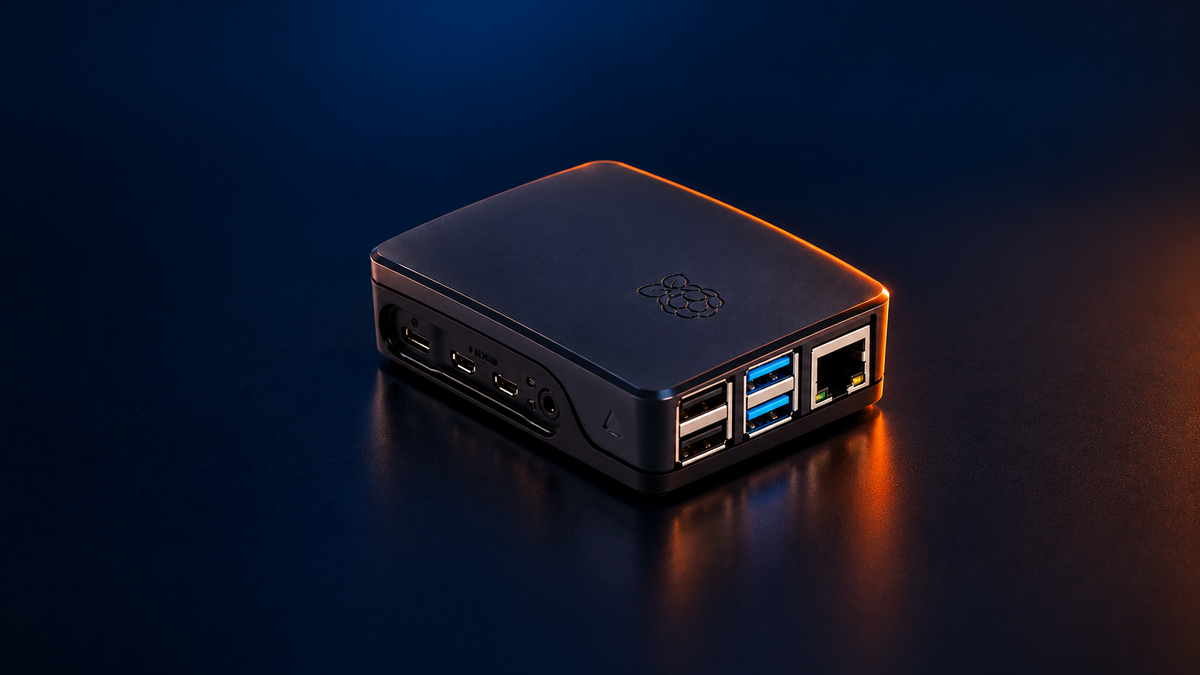
Every ad blocker you have ever installed works in one browser, on one device, for one person. The smart TV is not running it. Neither is the game console, the tablet your kid takes to bed, or the fridge.
This guide fixes that for the whole house at once, using a tiny computer called a Raspberry Pi and a free program called Pi-hole. You don't need to have done anything like this before. If you can follow a recipe and type carefully, you can do this. Set aside an afternoon.
How it works, in one minute
Before your phone can load a website, it has to look up where that website lives — a bit like looking up a name in a phone book to get a number. That phone book is called DNS, and right now your internet provider runs it for you.
Ads and trackers come from their own addresses, like doubleclick.net. Pi-hole becomes your home's phone book. When any device asks where an ad lives, Pi-hole says "never heard of it," and the ad never loads.
Because it works at the level of the whole home network, there is no app to install on each device — and nothing for a clever twelve-year-old to uninstall.
Is there a free way?
Yes, and you should know about it before you spend $125.
Instead of building your own phone book, you can borrow one. AdGuard DNS runs a free public one that blocks ads and trackers. Put its two addresses, 94.140.14.14 and 94.140.15.15, into your router's DNS setting — the same setting this guide uses in Point your home network at it — and every device in the house is filtered in about five minutes, with nothing to buy and no account.
The catch is control. It's someone else's filter. You can't see what it blocks or which device asked, and when it blocks something you actually need, like a school website or your bank's login page, you can't unblock it. Your only fix is switching it off for the whole house.
Pi-hole is your own filter. You get a log of every request from every device, an Allow button for the day something breaks, your choice of blocklists, and different rules for different devices. That's what the $125 buys.
So: if you just want fewer ads with no fuss, try the free way tonight. If you want to see what's happening on your network and make the calls yourself, keep reading.
What you'll need
| Item | Rough cost |
|---|---|
| Raspberry Pi 4, the 2GB model | $90 |
| Official Raspberry Pi USB-C power supply | $8 |
| microSD card, 32GB | $15–20 |
| A case for the Pi | $6–10 |
| A network cable (you may have one in a drawer) | $0–5 |
That's roughly $125 if you buy each piece separately.
Check the bundles before you buy the parts. Starter kits that include the Pi, the power supply, a case and a microSD card often cost less than that. Look for one with a Raspberry Pi 4 (2GB or more), the official power supply and a card of at least 32GB. Skip kits padded with extras you won't need, like a keyboard, mouse or HDMI cable, and compare the kit's price with the table above before you buy. If the card comes with software already on it, that's fine: you'll set it up fresh in the next step anyway.
You'll also need:
- A computer (Windows or Mac) to set things up from. If it has no slot for a memory card, a USB card reader costs a few dollars.
- The login for your router — the box your internet comes in through. It's usually printed on a sticker on the router itself.
The 2GB model is already far more than Pi-hole needs, so there's no reason to pay for a bigger one. An older Raspberry Pi 3B+ also works if you already have one.
Put the operating system on the memory card
The Pi doesn't come with any software. Its operating system (the equivalent of Windows or macOS) lives on the microSD card, and you'll put it there from your computer.
- On your computer, download and install Raspberry Pi Imager from raspberrypi.com/software.
- Put the microSD card in your computer and open Imager.
- Device: choose Raspberry Pi 4.
- Operating system: choose Raspberry Pi OS (other), then Raspberry Pi OS Lite (64-bit). "Lite" means no desktop. This Pi will spend its life in a closet and never needs a screen.
- Storage: choose your microSD card. Double-check it's the card and not some other drive — everything on it will be erased.
- Customization: this is the important part. (Raspberry Pi is a British company, so Imager may spell this "Customisation", and "Localization" below as "Localisation".) Imager lets you set up the Pi before it ever turns on:
- Hostname: type
pihole. This is the name it will show up as on your network. - Localization: pick your city so the clock and keyboard are right.
- Username and password: choose your own. Write them down — you'll need them in a few minutes, and there's no "forgot password" link.
- Wi-Fi: skip it. You're going to use a cable, which is more reliable for something the whole house depends on.
- SSH: turn it on, and choose password login. SSH is what lets you control the Pi from your computer, so you never need to plug in a screen or keyboard.
- Hostname: type
- Write the card. Imager takes a few minutes and checks its work. When it says it's finished, take the card out.
Plug it in and give it a permanent address
- Put the microSD card into the slot on the underside of the Pi, and put the Pi in its case.
- Connect the network cable from the Pi to a spare socket on the back of your router.
- Plug in the power last. A red light means it has power; a flickering green light means it's thinking. Give it three or four minutes to start up for the first time.
Now open your router's settings. Type its address into your web browser — it's on that sticker, and is very often 192.168.1.1, 192.168.0.1 or 10.0.0.1 — and log in.
Look for a list of connected devices (sometimes called "attached devices," "clients" or "DHCP clients"). You should see one called pihole. Next to it is its address, a set of four numbers such as 192.168.1.50. Write it down. From here on, this guide calls it the Pi's address.
Now make that address permanent. This is the step people skip and then spend an evening debugging. Every device in your house is about to be told "ask the Pi for directions," and they find the Pi by its address. If the router ever gives the Pi a different one, the internet stops working for everyone at once.
Look for a button next to the Pi in that device list, or a separate page, called something like Reserve, Address reservation, Static lease or Fixed IP. Use it to keep the address the Pi has now. Every router names this differently; if you're stuck, search the web for your router's model name plus "address reservation."
Connect to the Pi from your computer
You'll control the Pi by typing commands into a window on your computer. This is the part that looks the most intimidating and is actually the most mechanical: you'll mostly copy and paste.
Open the command window:
- Windows: click Start, type
Terminal(orPowerShellon older Windows), and open it. - Mac: open Finder → Applications → Utilities → Terminal.
Type this, replacing yourname with the username you chose in Imager and the numbers with the Pi's address, then press Enter:
ssh yourname@192.168.1.50
Two things will happen that look like problems and aren't:
- The first time, it asks "Are you sure you want to continue connecting?" Type
yesand press Enter. Your computer is just meeting the Pi for the first time. - When it asks for your password, nothing appears as you type — no dots, no stars. That's normal and deliberate. Type it and press Enter.
When you see a line ending in something like yourname@pihole:~ $, you're in. Everything you type now runs on the Pi, not your computer.
First, bring the Pi's software up to date. Copy this line, paste it into the window, and press Enter:
sudo apt update && sudo apt full-upgrade -y
sudo means "do this as the administrator," so it may ask for your password again. This can take several minutes and prints a lot of text. You're finished when the yourname@pihole:~ $ line comes back.
Install Pi-hole
Paste this and press Enter:
curl -sSL https://install.pi-hole.net | bash
This downloads the official installer from Pi-hole's own website and runs it. After a minute, a blue setup screen appears. You can't use your mouse here. Use the arrow keys to move, the space bar to select an option, Tab to jump to the OK button, and Enter to confirm.
Here is every question it asks, and what to answer:
- Welcome and donation screens: press Enter.
- Static IP needed: this is the permanent address. You already sorted it out on your router, so choose Continue.
- Choose an interface: pick eth0, which is the network cable.
- Upstream DNS provider: Pi-hole blocks the bad addresses, but it still needs someone to look up the good ones. Don't just press Enter here — the first choice is Google, and picking it quietly hands your family's browsing history to the company you're trying to get away from. Use the arrow keys to choose Quad9 (filtered, DNSSEC) or Cloudflare. Both publish real privacy policies, and Quad9 also blocks known scam and malware sites.
- Enable query logging: choose Yes. This keeps a list of which websites each device asked for, which is how you'll find out what went wrong if a site ever breaks.
- Privacy level: Show everything is the most useful while you're getting started. It does mean the Pi keeps a record of every website every device in your house visits, so decide that deliberately. You can change it later.
- Blocklists: choose Yes to the suggested list. It is genuinely enough. Resist the urge to add a dozen more later — every extra list is another chance to break a site nobody can then work out how to fix.
When it finishes, the last screen shows your admin password. Write it down now; it's only shown once. (If you do lose it, type sudo pihole setpassword on the Pi to choose a new one.)
Pi-hole is now running, but nothing is filtered yet. It's ready to answer questions — nobody is asking it any.
Point your home network at it
This is the one setting that switches the whole house over. Go back to your router's settings in your web browser.
Before you change anything, take a photo of the screen. That photo is your undo button.
Find the DHCP or LAN settings. DHCP is the part of your router that hands out addresses to devices when they join your network, and it also tells them which phone book to use. Find the DNS server setting there, and replace what's in it with the Pi's address. If there's a second DNS box, leave it empty — anything you put there lets devices skip the Pi.
The trap is the other DNS setting. Many routers have two: one on the internet or WAN page, which only the router itself uses, and one on the DHCP or LAN page, which is handed to your devices. Changing the internet one does nothing for your devices. You want the DHCP one.
Save the settings. Devices pick up the change gradually, as they rejoin the network. To see it work straight away, turn Wi-Fi off and back on on your phone.
Some routers supplied by internet providers don't let you change this setting at all. If yours is one of them, Pi-hole can take over handing out addresses itself instead. That's a slightly bigger change, and it gets its own guide.
Check that it's working
On your computer, open your web browser and go to http://192.168.1.50/admin, using the Pi's address. Log in with the admin password from the end of the install.
You'll see the Pi-hole dashboard. Browse a news website on your phone, then look at the dashboard again: Total queries should climb, and Queries blocked should start counting. Open the Query Log to see each request come in, with the blocked ones shown in red.
Two honest caveats:
- Some devices ignore your router. Chromecasts and some smart TVs are built to use Google's phone book no matter what you tell them, so they won't appear in the log. Forcing them is possible, but it's an advanced project for another day.
- Some browsers can skip it too. Chrome and Firefox have a setting called "secure DNS" that can go around your Pi. Firefox usually turns it off by itself when it notices a filtered network; Chrome is less reliable. If a computer never shows up in the query log, look for "secure DNS" in that browser's settings and turn it off.
If something goes wrong
A website or app stopped working. On the Pi-hole dashboard, choose Disable blocking and pick 5 minutes, then try again. If it works now, Pi-hole was blocking something that site needs. Open the Query Log, find the red entries from around the time it broke, and click Allow on the one that looks related.
Nothing works at all. If every device has lost the internet at once, the Pi is probably off or unplugged — remember, the whole house now asks it for directions. Check it has power and a green light. If you need the internet back right now, go to your router and put the DNS setting back the way it was in your photo. Everything goes back to how it was before you started.
What it costs
You've spent about $125, once.
After that, a Raspberry Pi 4 uses about 3 watts — less than a phone charger. Left on all year, that's roughly $4 of electricity a year. Less than one month of an ad-blocker subscription, and it covers every device in the house rather than one browser on one laptop.
There is no tier. There is no seat count. Nobody emails you in eighteen months to say the free plan is being discontinued.